> ## Documentation Index
> Fetch the complete documentation index at: https://docs.halios.ai/llms.txt
> Use this file to discover all available pages before exploring further.
# Portkey AI Gateway
> Integrate HaliosAI guardrails with Portkey for seamless AI safety
## Overview
[Portkey](https://portkey.ai) is an AI Gateway that simplifies working with multiple LLM providers. With Portkey's "Bring Your Own Guardrails" feature, you can seamlessly integrate HaliosAI's powerful guardrails into your Portkey workflows.
This integration allows you to:
* Apply HaliosAI guardrails to any LLM provider supported by Portkey
* Centralize your AI safety and observability in one platform
* Leverage Portkey's routing, caching, and fallback capabilities alongside HaliosAI guardrails
## Prerequisites
Before you begin, ensure you have:
* A HaliosAI account with an API key
* A Portkey account with an API key
* An agent profile created in HaliosAI with configured guardrails
* Your HaliosAI agent ID (UUID)
## Setup Instructions
### Step 1: Configure Webhook Guardrail in Portkey
Follow Portkey's official documentation to set up webhook guardrails:
[Bring Your Own Guardrails - Portkey Documentation](https://portkey.ai/docs/integrations/guardrails/bring-your-own-guardrails)
When configuring the webhook guardrail in Portkey, use the following settings:
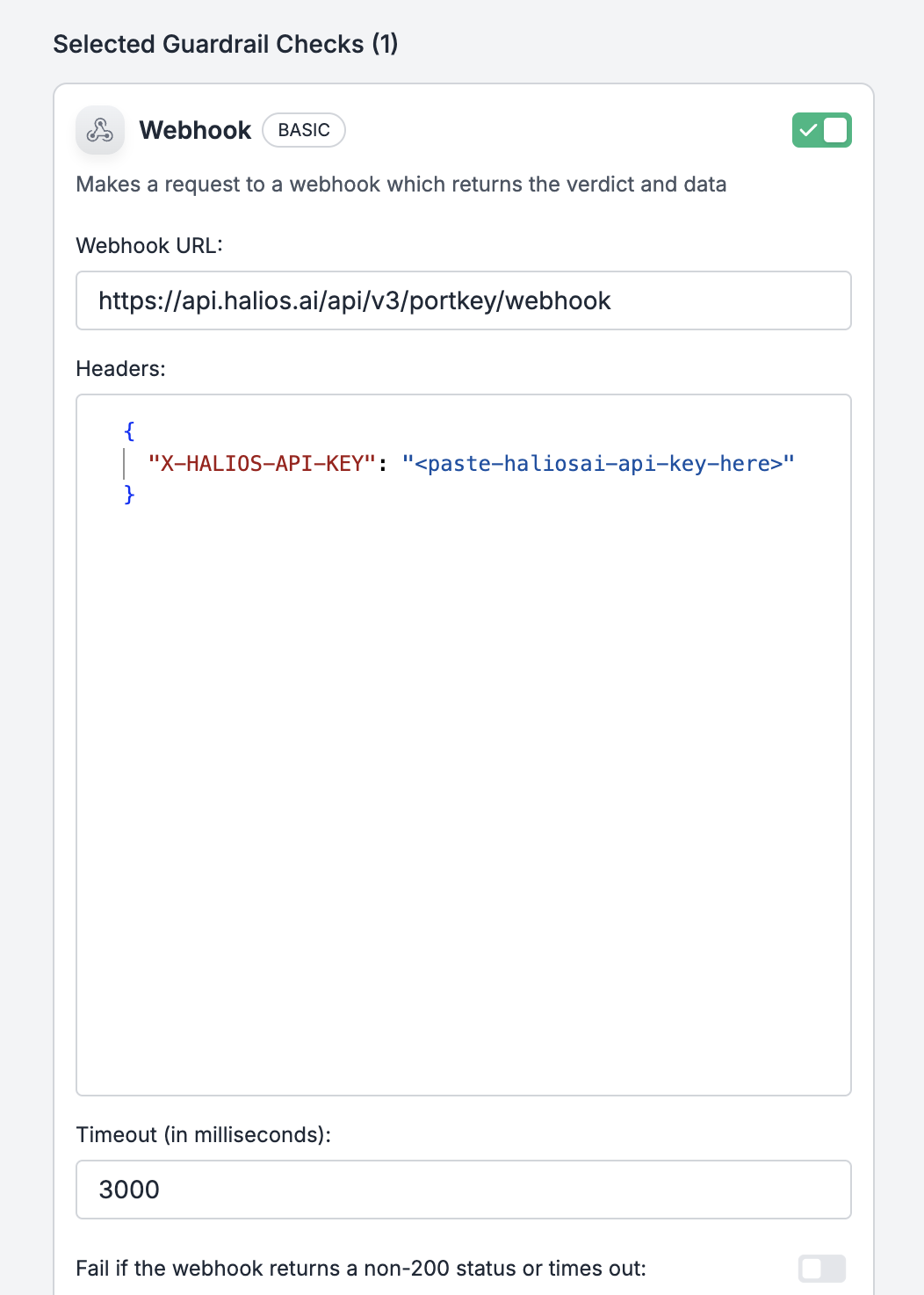 **Important Configuration Details:**
1. **Webhook URL**:
```
https://api.halios.ai/api/v3/portkey/webhook
```
2. **Headers**: Add your HaliosAI API key as an authentication header:
```
X-HALIOS-API-KEY: your-halios-api-key
```
### Step 2: Enable Guardrails in Portkey Config
Create or update your Portkey config to include the webhook guardrail:
**Important Configuration Details:**
1. **Webhook URL**:
```
https://api.halios.ai/api/v3/portkey/webhook
```
2. **Headers**: Add your HaliosAI API key as an authentication header:
```
X-HALIOS-API-KEY: your-halios-api-key
```
### Step 2: Enable Guardrails in Portkey Config
Create or update your Portkey config to include the webhook guardrail:
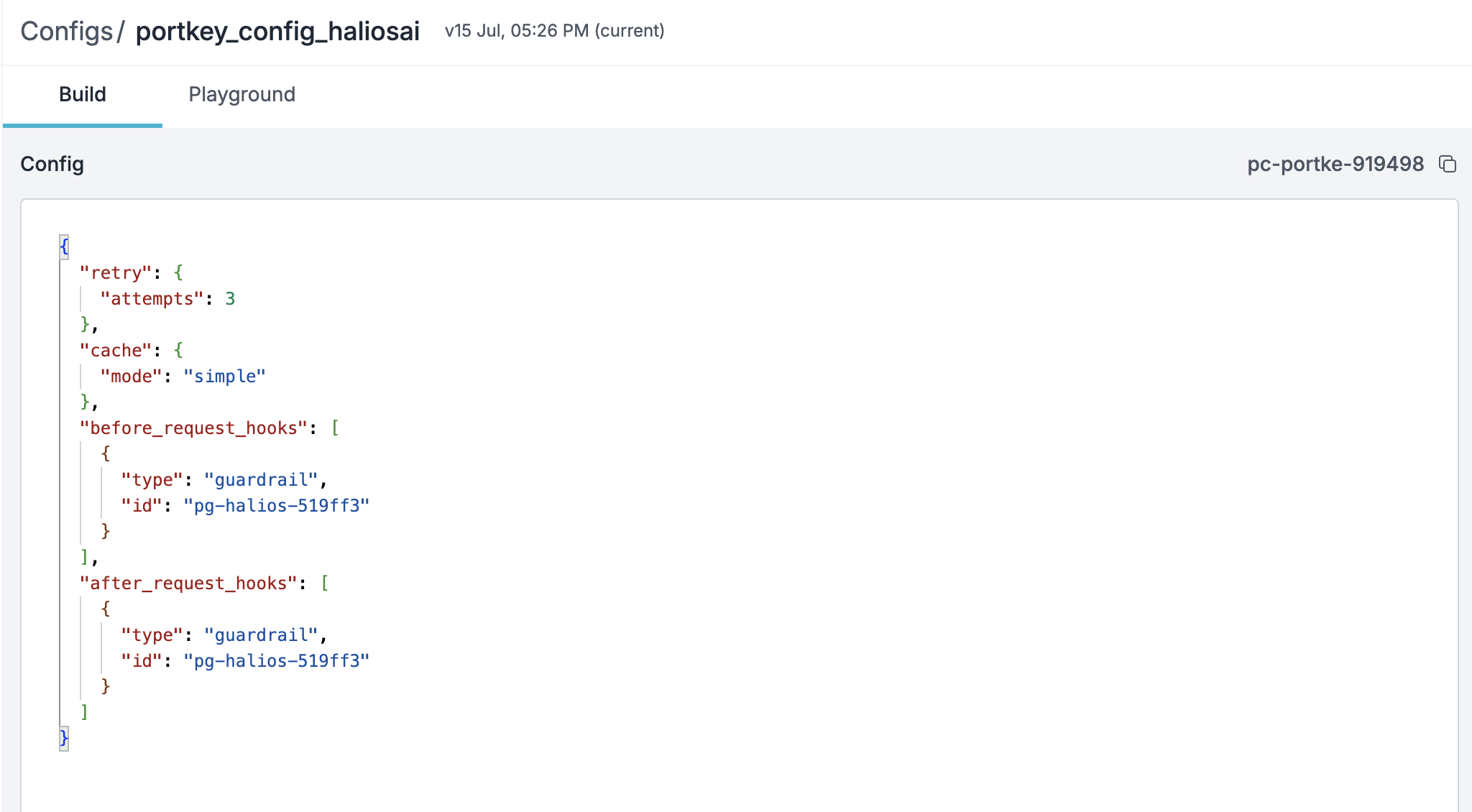 Make sure the guardrail is:
* ✅ Enabled in your config
* ✅ Applied to the appropriate routes or models
* ✅ Set to trigger at the right stage (before or after LLM call)
### Step 3: Integrate in Your Application
Here's a complete example of using Portkey with HaliosAI guardrails:
```python theme={null}
# Install the Portkey SDK
# pip install portkey-ai
import os
from portkey_ai import Portkey
# Get your HaliosAI agent ID from environment variables
halios_agent_id = os.environ.get("HALIOS_AGENT_ID")
# Initialize Portkey client with your configuration
portkey = Portkey(
api_key="",
virtual_key="",
config=""
)
# Make a chat completion request
# The agent_id in metadata routes the request to your HaliosAI agent
completion = portkey.chat.completions.create(
messages=[{
"role": "user",
"content": "write a code to sort array in python"
}],
model="gemini-2.0-flash-lite",
max_tokens=64,
metadata={"agent_id": halios_agent_id} # Important: Routes to your HaliosAI agent
)
print(completion)
```
The `agent_id` in the metadata field is **required** for HaliosAI to identify which agent profile and guardrails to apply. Without it, the webhook will return an error.
## How It Works
1. **Request Flow**:
* Your application sends a request to Portkey
* Portkey triggers the HaliosAI webhook (beforeRequestHook)
* HaliosAI evaluates the request against configured guardrails
* If guardrails pass, the request continues to the LLM
* If guardrails fail, the request is blocked or modified
2. **Guardrail Processing**:
* HaliosAI receives the request with the agent\_id from metadata
* Applies all enabled guardrails for that agent
* Returns a verdict (pass/fail) and optional transformations
* Portkey respects the verdict and processes accordingly
3. **Response Handling**:
* Portkey receives the LLM response
* Can optionally apply afterRequestHook guardrails
* Returns the final response to your application
## Configuration Options
### Agent Metadata
Pass the agent\_id in the request metadata to specify which HaliosAI agent to use:
```python theme={null}
metadata = {
"agent_id": "your-agent-uuid-here"
}
```
### Guardrail Types
HaliosAI supports various guardrail types that work seamlessly with Portkey:
* **Content Moderation**: Filter harmful or inappropriate content
* **Sensitive Data Detection**: Identify and redact PII, credentials, etc.
* **Prompt Injection Prevention**: Block adversarial prompts
* **Topic Adherence**: Ensure responses stay on topic
* **Custom Guardrails**: Create your own rules and policies
Configure these guardrails in your HaliosAI agent profile.
## Troubleshooting
### Common Issues
**Solution**: Ensure you're passing the `agent_id` in the metadata field:
```python theme={null}
metadata={"agent_id": "your-agent-uuid"}
```
**Solution**: Verify your HaliosAI API key is correctly set in the webhook headers:
```
X-HALIOS-API-KEY: your-halios-api-key
```
**Solution**: HaliosAI webhooks timeout after 13 seconds. Optimize your guardrails or contact support if processing takes longer.
**Solution**:
* Verify the guardrail is enabled in Portkey config
* Check that the webhook URL is correct
* Ensure the agent has guardrails configured in HaliosAI
## Best Practices
Store sensitive credentials like API keys and agent IDs in environment variables, never hardcode them.
Test your integration with various inputs to ensure guardrails work as expected before production deployment.
Use both Portkey and HaliosAI dashboards to monitor request latency and guardrail effectiveness.
Implement proper error handling for cases where guardrails block requests or webhooks timeout.
## Next Steps
Set up and customize guardrails in your HaliosAI agent profile
Explore the full HaliosAI API documentation
Use the HaliosAI Python SDK for direct integration
Learn more about Portkey's features and capabilities
## Support
Need help with your Portkey integration?
* 📧 Email: [support@halios.ai](mailto:support@halios.ai)
* 📚 Documentation: [docs.halios.ai](https://docs.halios.ai)
Make sure the guardrail is:
* ✅ Enabled in your config
* ✅ Applied to the appropriate routes or models
* ✅ Set to trigger at the right stage (before or after LLM call)
### Step 3: Integrate in Your Application
Here's a complete example of using Portkey with HaliosAI guardrails:
```python theme={null}
# Install the Portkey SDK
# pip install portkey-ai
import os
from portkey_ai import Portkey
# Get your HaliosAI agent ID from environment variables
halios_agent_id = os.environ.get("HALIOS_AGENT_ID")
# Initialize Portkey client with your configuration
portkey = Portkey(
api_key="",
virtual_key="",
config=""
)
# Make a chat completion request
# The agent_id in metadata routes the request to your HaliosAI agent
completion = portkey.chat.completions.create(
messages=[{
"role": "user",
"content": "write a code to sort array in python"
}],
model="gemini-2.0-flash-lite",
max_tokens=64,
metadata={"agent_id": halios_agent_id} # Important: Routes to your HaliosAI agent
)
print(completion)
```
The `agent_id` in the metadata field is **required** for HaliosAI to identify which agent profile and guardrails to apply. Without it, the webhook will return an error.
## How It Works
1. **Request Flow**:
* Your application sends a request to Portkey
* Portkey triggers the HaliosAI webhook (beforeRequestHook)
* HaliosAI evaluates the request against configured guardrails
* If guardrails pass, the request continues to the LLM
* If guardrails fail, the request is blocked or modified
2. **Guardrail Processing**:
* HaliosAI receives the request with the agent\_id from metadata
* Applies all enabled guardrails for that agent
* Returns a verdict (pass/fail) and optional transformations
* Portkey respects the verdict and processes accordingly
3. **Response Handling**:
* Portkey receives the LLM response
* Can optionally apply afterRequestHook guardrails
* Returns the final response to your application
## Configuration Options
### Agent Metadata
Pass the agent\_id in the request metadata to specify which HaliosAI agent to use:
```python theme={null}
metadata = {
"agent_id": "your-agent-uuid-here"
}
```
### Guardrail Types
HaliosAI supports various guardrail types that work seamlessly with Portkey:
* **Content Moderation**: Filter harmful or inappropriate content
* **Sensitive Data Detection**: Identify and redact PII, credentials, etc.
* **Prompt Injection Prevention**: Block adversarial prompts
* **Topic Adherence**: Ensure responses stay on topic
* **Custom Guardrails**: Create your own rules and policies
Configure these guardrails in your HaliosAI agent profile.
## Troubleshooting
### Common Issues
**Solution**: Ensure you're passing the `agent_id` in the metadata field:
```python theme={null}
metadata={"agent_id": "your-agent-uuid"}
```
**Solution**: Verify your HaliosAI API key is correctly set in the webhook headers:
```
X-HALIOS-API-KEY: your-halios-api-key
```
**Solution**: HaliosAI webhooks timeout after 13 seconds. Optimize your guardrails or contact support if processing takes longer.
**Solution**:
* Verify the guardrail is enabled in Portkey config
* Check that the webhook URL is correct
* Ensure the agent has guardrails configured in HaliosAI
## Best Practices
Store sensitive credentials like API keys and agent IDs in environment variables, never hardcode them.
Test your integration with various inputs to ensure guardrails work as expected before production deployment.
Use both Portkey and HaliosAI dashboards to monitor request latency and guardrail effectiveness.
Implement proper error handling for cases where guardrails block requests or webhooks timeout.
## Next Steps
Set up and customize guardrails in your HaliosAI agent profile
Explore the full HaliosAI API documentation
Use the HaliosAI Python SDK for direct integration
Learn more about Portkey's features and capabilities
## Support
Need help with your Portkey integration?
* 📧 Email: [support@halios.ai](mailto:support@halios.ai)
* 📚 Documentation: [docs.halios.ai](https://docs.halios.ai)